
Updated September 2026: WooCommerce and some of its payment integrations have added new anti-bot protections since I originally wrote this article. I’ve updated the recommendations below to include the reCAPTCHA protection now built into WooCommerce PayPal Payments, as well as the latest Store API protections.
Tl;dr version: Spam bots don’t always use your frontend checkout page. Many hit the WooCommerce Store API directly, bypassing CAPTCHAs and password protection. The fix is a multi‑layer defence combining Cloudflare, checkout restrictions, rate‑limiting, and anti‑spam tools.
Result: Spam orders drop from hundreds to zero in a matter of hours. This guide shows you how to implement these defenses based on real client cases.
You wake up, check your store dashboard, and see 50, 100, or even more new orders waiting. For a second, you’re happy… until you see that all of them are marked as Failed. They’re all for the same product. The customer names look suspicious. The email addresses are disposable or completely random. And there are more of them every few minutes.
Yep. You’ve got spam orders.
The problem is they’re not just annoying. A large number of fake orders can clog your database, mess up your sales reports, use up your server resources, slow your website and, if the attackers are testing stolen credit cards, create problems with your payment processor.
Quick Fixes: If you’re being hit with fake orders right now, start with these
If you’re currently getting hundreds of fake WooCommerce orders and you just want to reduce the damage first, I’d start with:
- Put the site behind Cloudflare and enable its basic protection.
- If you’re using WooCommerce PayPal Payments, enable its built-in reCAPTCHA protection.
- Enable WooCommerce Store API Rate‑Limiting – to limit excessive requests, go to WooCommerce -> Settings -> Advanced -> Features and enable “Rate limiting Checkout block and Store API”
- Disable guest checkout (WooCommerce → Settings → Accounts & Privacy → uncheck “Allow customers to place orders without an account”)
- Install CAPTCHA / Turnstile or a honeypot plugin like CleanTalk (paid) or WP Armour (free, but you might need the paid version to protect more pages)
- If the spam orders keep coming, start looking at the server access log.
That last one is important.
If the first four don’t solve the problem, the logs can usually tell you how the orders are actually being created. And once you know that, you can decide what to block, instead of just guessing.
When “Secure” Stores Still Get Spam
Recently, I got an urgent message from a client, worried that their WC store had been hacked. They were getting dozens of spam orders every single day, despite having:
- Password-protected their entire WooCommerce shop with a paid plugin
- Installed Wordfence and Sucuri
As a side note, here’s something funny I’ve noticed: these issues always seem to come in groups. When one client reaches out about a problem, I can count on at least one or two more showing up with the exact same issue within a few days. Sure enough, within a couple of days, a second client reached out with a similar problem.
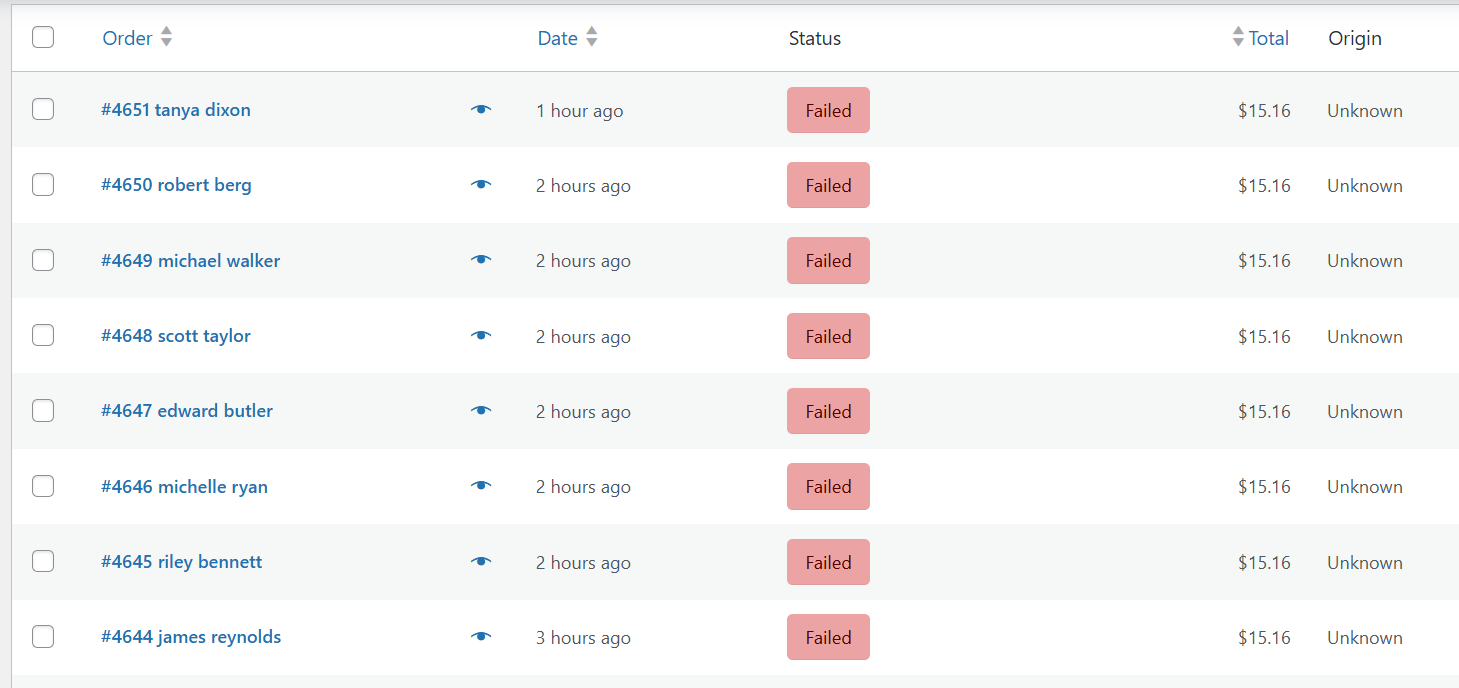
Time to investigate. When in doubt, get the logs.
And because I wasn’t about to novel-read my way through thousands of lines of access logs, I fed the log into AI and asked it to look for patterns that could explain how the orders were being created. I also gave it some of the IP addresses associated with the suspicious orders and asked it to trace what those IPs were doing.
That turned out to be a timesaver.
One important warning here, if you plan on doing the same thing: check whatever the AI tells you it found.
AI is very good at spotting patterns in large amounts of text. It’s also very capable of enthusiastically reporting a pattern that isn’t actually there. I’ve had it confidently “find” things in logs that didn’t really exist, and insist they were there when I challenged it. So use AI to help you investigate, not as the investigation itself.
Anyway, long AI story short, the logs showed how the bots were placing those orders.
The bots weren’t using the checkout the way a customer does, but exploiting the WooCommerce Store API
Client no. 1 – the logs were showing the largest number of requests were for URLs like:
/wp-json/wc/store/products/wp-json/wc/store/cart/wp-json/wc/store/checkout
These aren’t regular web pages regular people use. The first ones are part of WooCommerce’s Store API – a system that allows scripts to interact with your store without loading the visual website.
The bot didn’t need to open the product page, click “Add to cart”, go to checkout and fill out a form. It could just talk directly to the API.
On Client no. 2‘s site, the attackers where using a different approach:
GETrequest to a product page with?add-to-cart=… in the URL- Then immediately after adding an item to the cart, a different IP from the same botnet sends a
POSTrequest to/?wc-ajax=ppc-simulate-cart
The attacker requested a product page with an add-to-cart parameter and then made a POST request to:
/?wc-ajax=ppc-simulate-cartThat particular endpoint came from the PayPal Payments plugin rather than WooCommerce itself.
The details were different, but the basic idea was the same: the bots were talking directly to your backend.
Why the usual WooCommerce spam fixes don’t always work
Most store owners don’t realize that spam bots don’t browse your website like normal customers.
They don’t click through your product pages, read descriptions, or fill out checkout forms. They’re automated scripts – programs running on autopilot that talk directly to your store’s database through unguarded doors, like the endpoints (URLs) I just mentioned, from the Store API or from payment plugins.
These endpoints or URLs must remain publicly accessible for customers to add products to the cart, but unfortunately bots abuse them.
Why password-protecting the shop can fail
A password-protection plugin can do a perfectly good job of protecting your product and checkout pages. But that doesn’t necessarily mean it protects every API endpoint used by WooCommerce.
If the Store API remains accessible, a bot may simply skip the password-protected pages and send requests directly to the API. Which is what happened on the sites I was investigating.
Why putting a CAPTCHA on checkout isn’t enough
CAPTCHAs only protect forms that load in the browser. If the bot doesn’t submit that form in the first place, the CAPTCHA on the form doesn’t get a chance to stop it.
And this is one of the reasons the newer protections built into payment plugins are useful: they can protect the payment endpoints themselves rather than relying entirely on a CAPTCHA attached to the frontend form.
Why security plugins can’t always stop spam orders
Security plugins focus on login attempts, comment spam, and request blocking or rate limiting – all very useful. But they can only do so much if the traffic looks like a legitimate request to an endpoint that needs to remain publicly accessible.
If you’ve already got Wordfence, Sucuri, Cloudflare and a CAPTCHA plugin and you’re still getting fake orders, installing the n-th security plugin isn’t necessarily going to help. At that point I’d want to know which request is actually creating the order.
My checklist for preventing WooCommerce spam orders
Stopping WooCommerce spam requires multiple security layers working together. Will this work 100%? Based on my experience, the attacks can get quite sophisticated and you might find they keep find ways to get through.
Here’s what actually works based on real implementations:
0. If you use PayPal Payments, enable its reCAPTCHA protection
There’s a relatively new option here that wasn’t available when I first wrote this article.
WooCommerce PayPal Payments now includes its own reCAPTCHA protection for PayPal payment endpoints, including Advanced Card Processing. It uses Google reCAPTCHA v3 to score visitor behaviour and reCAPTCHA v2 as a fallback when the v3 score is below your chosen threshold.
You need both v3 and v2 keys. The setup is in:
WooCommerce → Settings → Integration → WooCommerce PayPal Payments reCAPTCHA
Enable Enable reCAPTCHA protection, then configure:
- a Google reCAPTCHA v3 Site Key and Secret Key
- a Google reCAPTCHA v2 “I’m not a robot” Site Key and Secret Key
The current WooCommerce documentation recommends starting with a v3 threshold of 0.5. You can make the threshold stricter if necessary, but I’d start there and see what happens before turning the dial all the way up.
The v3 check runs invisibly. If the score falls below your threshold, the plugin can fall back to the v2 challenge.
There’s also an Order Metabox option that lets you see the reCAPTCHA status and score on individual orders, which can be useful when you’re trying to figure out whether a particular order actually went through the protection.
One important limitation: This isn’t a replacement for Store API protection.
The PayPal Payments reCAPTCHA is specifically protecting PayPal’s payment endpoints. It isn’t a general CAPTCHA for every WooCommerce API request.
So if your attackers are abusing /wp-json/wc/store/checkout, you still need to deal with that separately.
00. Have a Really Good Hosting Provider (Often Overlooked)
A reliable hosting provider is a major part of preventing spam orders and other attacks, and the first line of defense. Good hosts actively monitor malicious traffic and notify you of threats (and not just try to upsell one of their services), isolate infected accounts, and keep server‑level firewalls updated and properly configured. This means many attacks are blocked before they ever reach WordPress or WooCommerce. If your hosting is slow, outdated, or lacks proper security layers, bots have an easier time overwhelming your site.
If you’re unsure how to choose a secure, well‑maintained hosting provider, see my (frequently updated) article on Recommended Hosting for Your WordPress Site, where I cover both low- and medium-cost options.
1. Put Cloudflare in front of the site
Cloudflare is useful here because it can stop or challenge traffic before it reaches WordPress.
After implementing Cloudflare with properly tuned settings, their spam orders went from 50 orders per day to zero – while legitimate orders continued flowing normally.
Basic setup (free plan works):
- Sign up for Cloudflare and add your domain
- Change your domain’s nameservers (Cloudflare provides instructions)
- Enable “Bot Fight Mode” and “Browser Integrity Check” under Security > Settings
- (Advanced) Set up Security Rules to block the vulnerable entry points. This requires a more advanced level; you need to figure the differences between legitimate requests and malicious requests from your logs, so that your Security Rules don’t block real users.


Finding the right balance:
The reality is every site is different. You’ll need some trial and error to find the sweet spot between blocking spammers and letting real orders through.
Critical testing step: After changing settings, always test in an incognito/private browser window. Make sure real customers can still:
- Browse products and use filters
- Add items to cart
- See cart updates
- Complete checkout
- Use Express Checkout buttons (Apple Pay, Google Pay)
If legitimate orders start getting blocked, dial back the security level slightly and tweak your Security Rules. Just keep an eye on Cloudflare’s events log for each of your custom Security Rules and see if you might have missed anything.
To access them, go to your Cloudflare’s site dashboard, Security → Security Rules
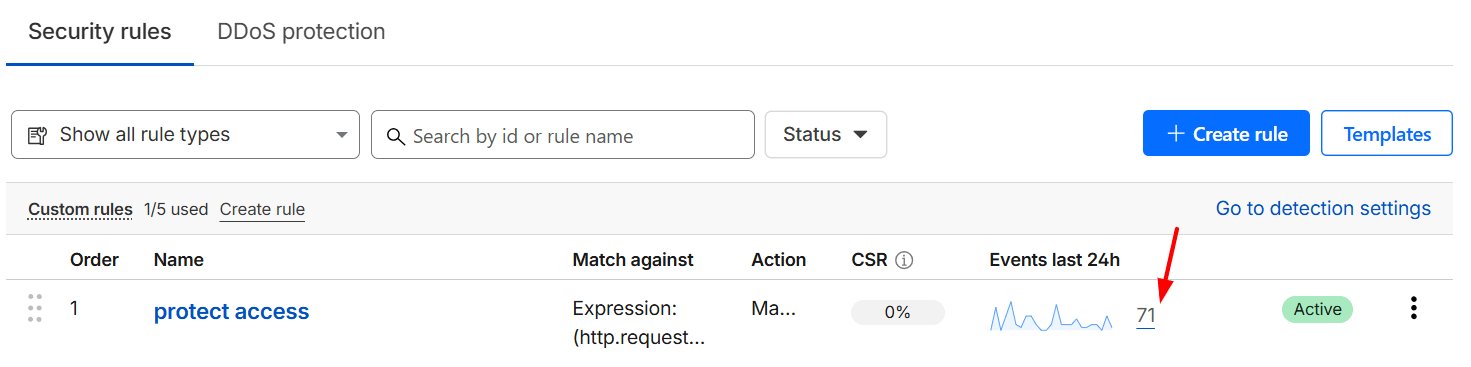
Then click on the Events for each rule → select Last 24 hours → Export.
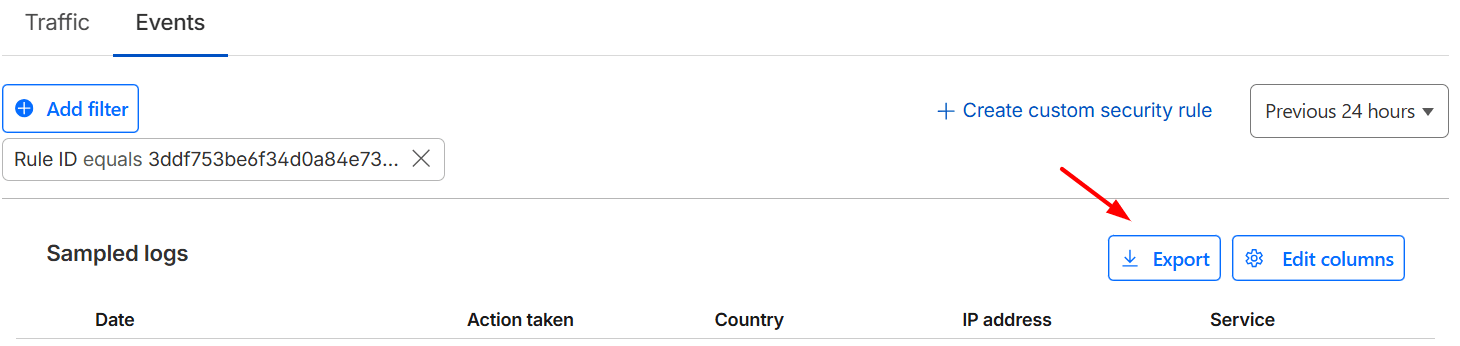
You can now go over the logs and see if there was any legitimate looking traffic that got blocked or bad bots that are getting through. Or feed the logs into an AI assistant and have it do this. Just remember to double check their findings and make sure they are accurate.
2. Disable Guest Checkout (optional)
This one is worth considering.
You can disable guest checkout under: WooCommerce → Settings → Accounts & Privacy
Uncheck:
- “Allow customers to place orders without an account”
Check:
- “Allow customers to create an account on the ‘My account’ page”
- “Allow customers to create an account during checkout”
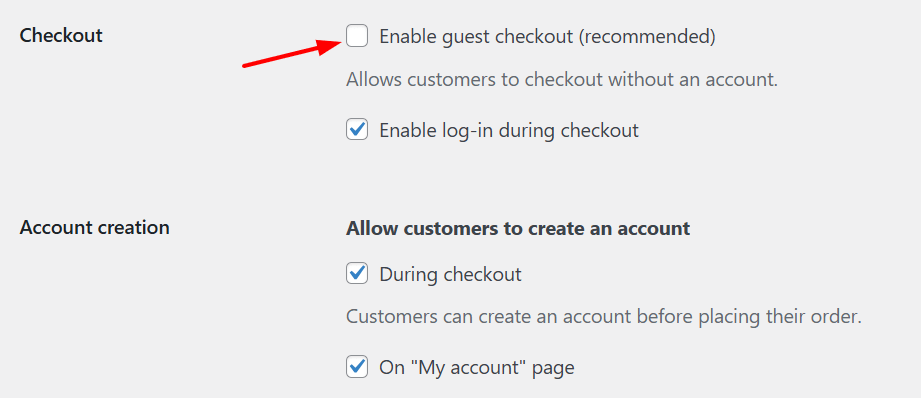
Why this can work: The guest checkout page is a bot’s favorite target. It’s a simple, predictable, single-page form, making it perfect for automated spam, especially for card testing (where bots place hundreds of small orders to test stolen credit card numbers).
When you disable guest checkout, you force all potential spammers to pass through your registration form. This allows you to use more targeted anti-spam tools at that single point – see the recommendations below on using CAPTCHA, a honeypot and email verification.
Important limitations:
- Sales Impact: Forcing registration will add friction for your real customers. It’s a known cause of cart abandonment. You must decide if this conversion rate trade-off is worth the reduction in spam.
- Security Limitation: This step alone is not a complete fix. It will only deter the simple, lazy bots. A sophisticated bot can still be programmed to fill out a registration form.
3. Add Turnstile / CAPTCHA or Honeypot to Registration & Checkout
Think of CAPTCHAs and honeypots as small tests that help your site separate humans from bots. CAPTCHAs ask visitors to prove they’re real people. Honeypots are invisible form fields that only bots fill out. When a bot completes the hidden field, the submission is automatically rejected – all invisible to real users. And Turnstile is Cloudflare’s modern, privacy-friendly alternative to reCAPTCHA.
Install one of these plugins:
- Cloudflare Turnstile (recommended) — privacy‑friendly, fast
- Google reCAPTCHA — widely supported and low friction
- WP Armour Honeypot — lightweight, works invisibly
- CleanTalk — paid but powerful
Note: This protects the frontend forms, not the API itself. But many bots still attempt normal form submissions.
4. Enable WooCommerce Store API Rate‑Limiting
WooCommerce has started to include support for limiting the number of excessive request, such as those from card testing or spam attacks. By default, the setting is off.
You can enable rate limiting for Checkout (place order and endpoint) by going to WooCommerce -> Settings -> Advanced -> Features and enabling “Rate limiting Checkout block and Store API“.
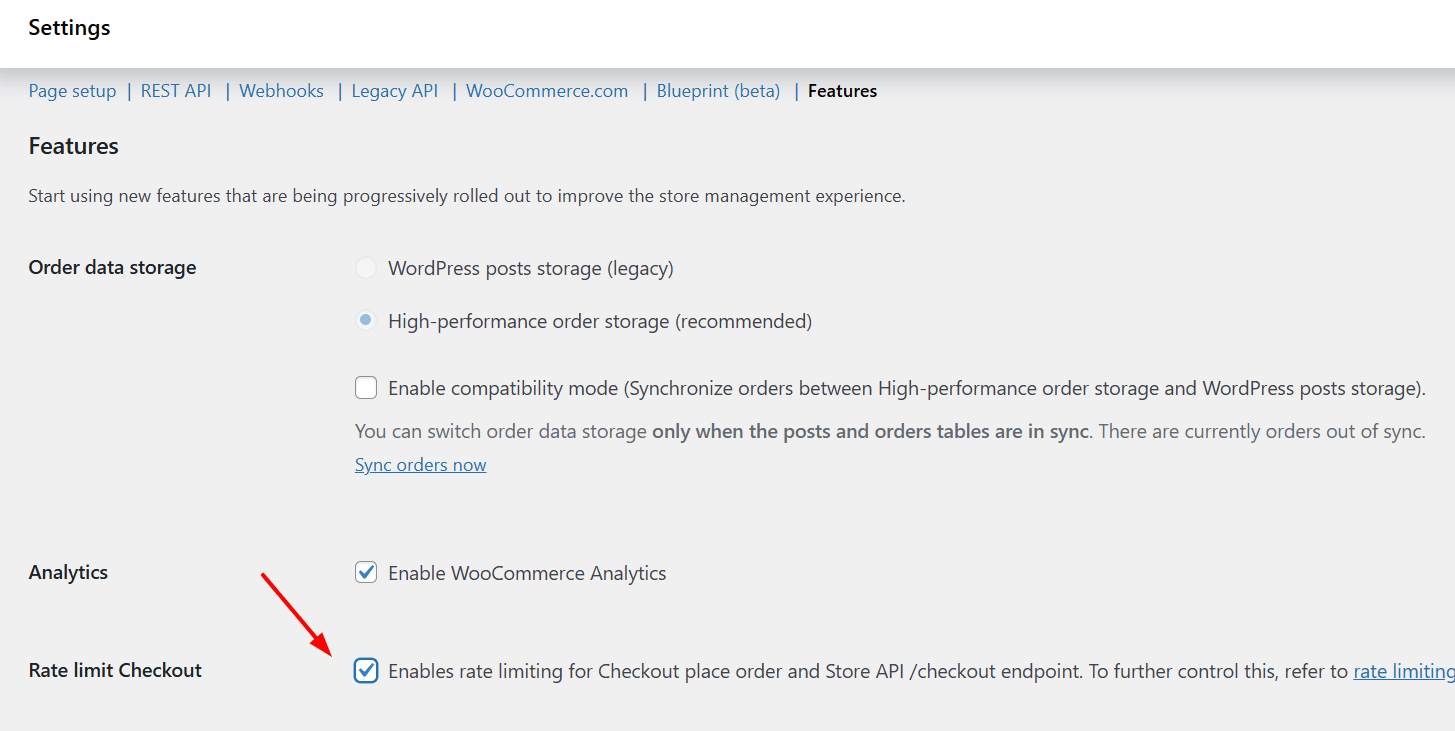
This applies stricter rate limiting to the place-order/checkout endpoint. WooCommerce introduced this specifically as a way to help with attacks such as card testing.
It won’t completely block an attack, but it will at least slow it down. So instead of hundreds of orders per day, you might get only a few dozens
5. Ongoing Monitoring
Make these checks part of your weekly or monthly routine::
- Review failed orders
- Check for patterns (IP, email, country)
- Delete spam orders to keep the database lean
- Monitor server logs for unusual traffic spikes or activity
- Review Cloudflare analytics
- Keep WordPress, WooCommerce, and all plugins updated
6. Additional Security Measures
Optional but helpful:
- Add a behaviour‑based anti-fraud plugin. Just keep in mind that, in some cases, these can produce false positives and block legitimate orders.
- Enable email verification for new accounts to stop bots that auto‑register. This is not default WC functionality, you need a plugin like Customer Email Verification for WooCommerce.
- Disable free shipping unless necessary
The Bigger Picture: Security Is Ongoing
Here’s the truth: spammers are constantly evolving. What works today might need adjustment tomorrow.
Today, they’re exploiting the Store API. Next week, they might find a vulnerability in a plugin. Next year, who knows?
This is why staying ahead of these threats isn’t a one-time fix – it’s an ongoing process.
Even with Cloudflare, Sucuri, Wordfence or any other firewall/monitoring app you might use, you still need to:
- Monitor your store regularly
- Adjust security settings as needed
- Keep your WP, theme and plugins updated
- Review security logs for unusual activity
Need help securing your WooCommerce store?
If you don’t want to spend your weekend digging through access logs and WooCommerce requests, that’s the sort of problem I can help with.
I can look at the logs, figure out which part of the checkout is being abused, and help you put the protection in the right place — without turning the whole store into a maze of CAPTCHAs and blocked requests.
